
Connect a channel
Add a social account to your workspace, and keep it connected.
A channel is one social account in your workspace: an Instagram account, a Facebook Page, a YouTube channel. Each network has its own page below with what it asks of you. The steps in the app are the same for all of them.
Before you start
- Your role: only an owner or an admin can connect channels. Other roles see "Your role cannot connect accounts."
- Your email address: it has to be verified. If eksis asks, enter the code it sent you, or request a new one.
- Your plan: Free holds 1 channel, Starter 20, Premium 75, and Agency 200. When every slot is used, eksis shows "The next account slot is locked". X starts on Starter, and its card reads "Included from Starter" on Free.
Connect
Open the dialog
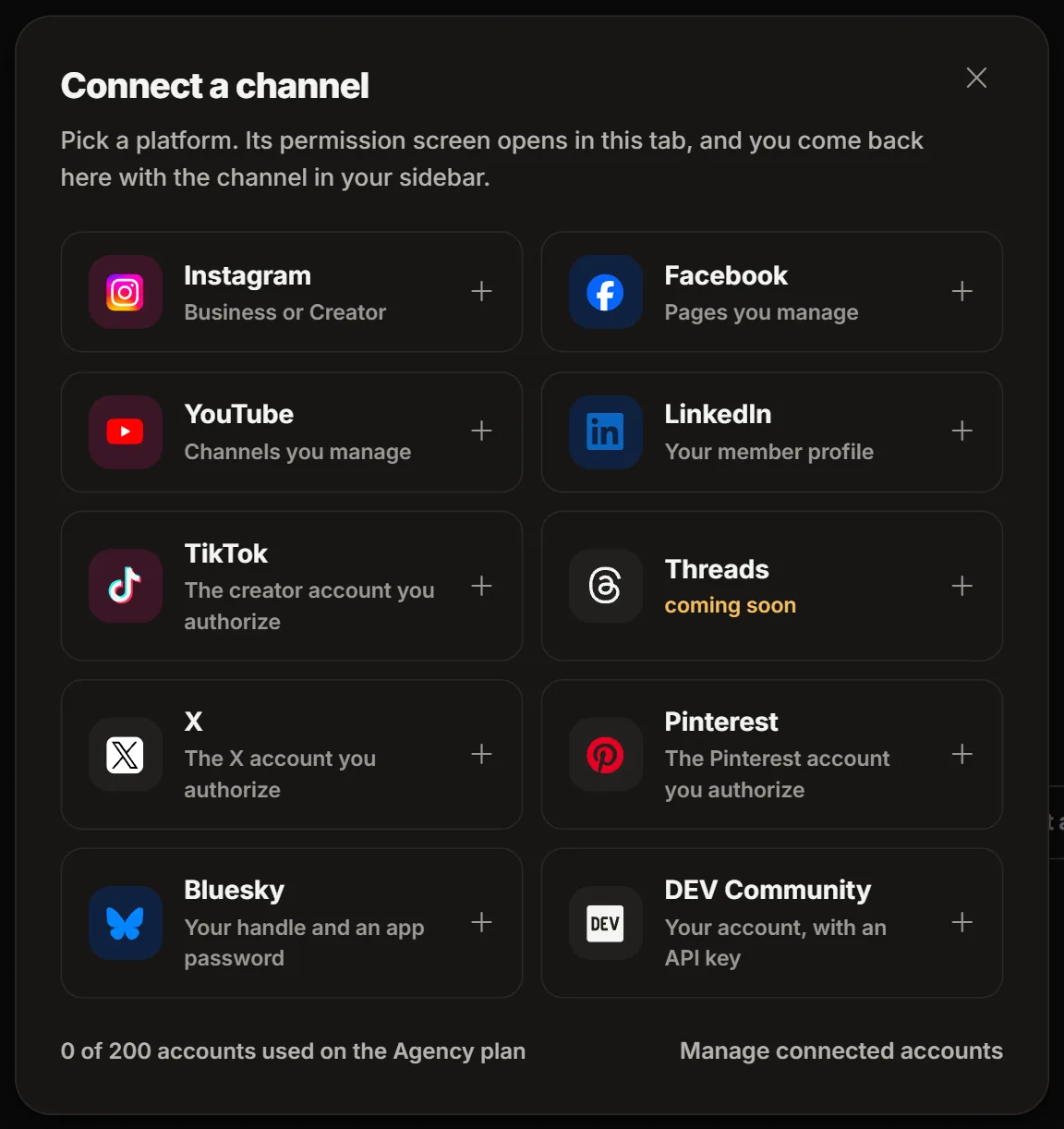
In the sidebar, select + next to Channels (its label is Add account). The Connect a channel dialog opens. The same button sits on Settings, Channels.
Pick the network
Select its card. The network's permission screen opens in the same tab. Bluesky and DEV Community have no permission screen: the dialog asks for a handle and app password, or an API key, instead.
Approve the permissions
Sign in to the account you want to connect and approve every permission eksis asks for. Without them eksis cannot post or reply for you.
Pick the accounts
Back in eksis, the Pick the accounts to connect screen lists what the permission covers, for example every Page you manage. Tick the ones you want and choose Connect 1 account (or more). An account that is already in the workspace shows Already connected.
You return to the screen you started from, and the channel appears in your sidebar.
Networks
A Business or Creator account
A Page you manage
YouTube
A channel you manage
Threads
The Threads profile you authorize
TikTok
The creator account you authorize
Your member profile
X
The X account you authorize
Bluesky
Your handle and an app password
The Pinterest account you authorize
DEV Community
Your account, with an API key
Channel status
Settings, Channels lists every channel with one status and one action.
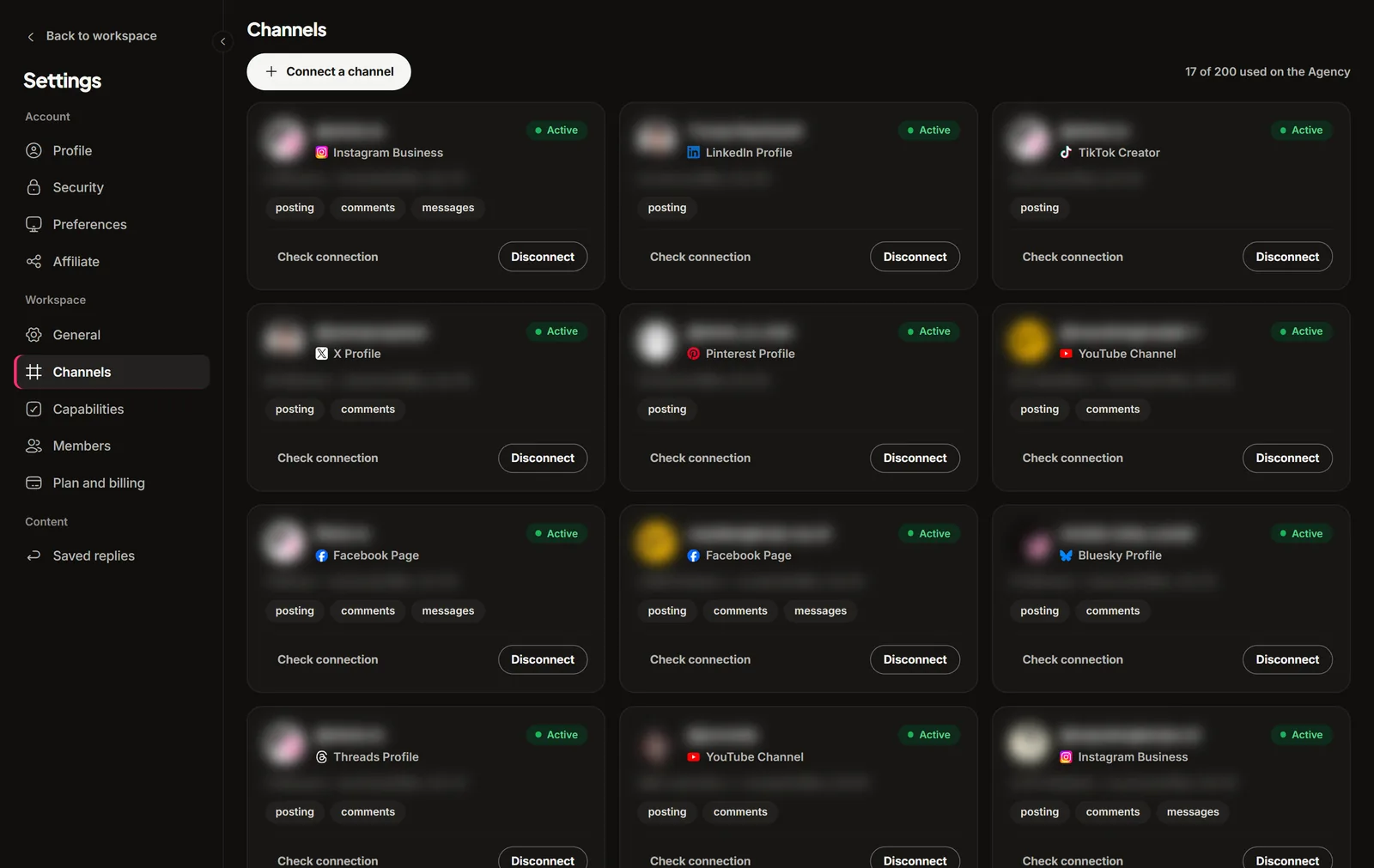
| Status | What it means | Action |
|---|---|---|
| Active | The connection works. | Check connection |
| Needs reconnecting | The network no longer accepts the permission eksis holds. | Reconnect |
| Missing permission | A permission eksis needs was not granted. | Grant permission again |
| Suspended | The network reports the account as suspended. | Contact support |
While a channel is not active, its scheduled posts are held, not deleted. A channel disconnected explains how to fix each status.
Disconnect a channel
On Settings, Channels, choose Disconnect on the channel. Scheduled posts for it are held, not deleted, and posts already published stay on the network.
Good to know
Paused for maintenance
A card that reads "Paused for maintenance" cannot be connected for now. Channels you already connected on that network keep working, and their scheduled posts still go out.
- "Permission denied" means a permission was declined on the network's screen. Start again and approve everything it asks for.
- A connect session expires after 15 minutes. If you were away longer, start again from the dialog.
- One permission can cover several accounts. If eksis says they are already in your workspace, nothing changed.